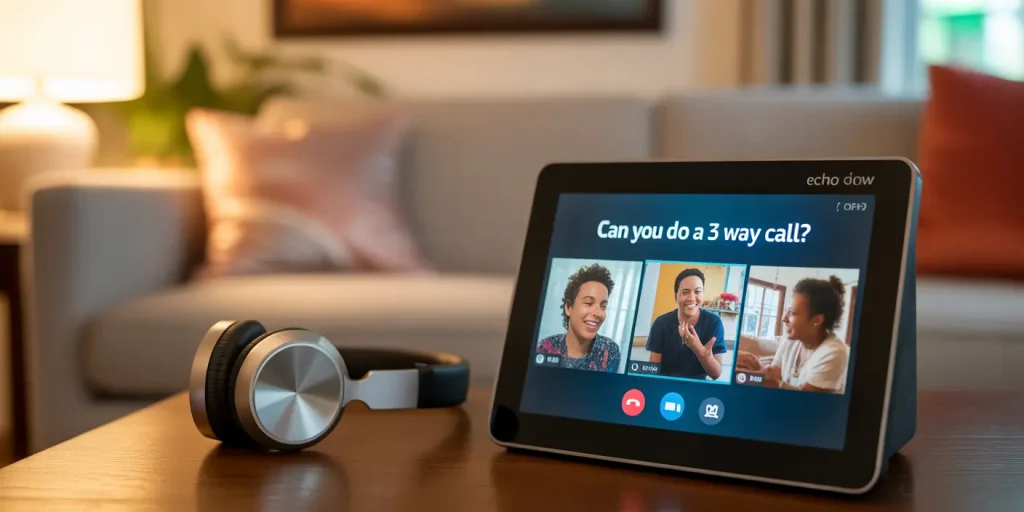
Yes, you can do a 3-way call on Echo Show, but it works differently than a standard phone conference. Seniors and caregivers can use Alexa Group Calling, third-party apps like Zoom or Skype, or the Drop-In feature to connect with multiple people at once, making group chats simple, accessible, and stress-free.
Quick Rundown: Can You Do a 3-Way Call on Echo Show? Staying Connected Made Simple
- Yes, It’s Possible: Echo Show supports group calling, allowing seniors to chat with multiple people at once.
- Easy Setup: Just say, “Alexa, call [name] and [name],” or use the Alexa app to create a group call.
- Video & Audio Options: Choose between video or audio-only calls depending on comfort and privacy needs.
- Great for Families: Group calls make it easier to connect with children, grandchildren, or friends at the same time.
- Accessibility Benefits: Hands-free calling with voice commands helps those with mobility or dexterity challenges.
- Requires Compatible Devices: Participants need an Alexa-enabled device or the Alexa app to join the call.
Staying connected matters more than ever, especially for older adults aging in place or caregivers juggling family updates and medical check-ins.
I helped my mom-in-law set up her Echo Show, and once she practiced a few times, she began to feel confident using it on their own.
That experience is what I’ll share here, so you know these solutions really work.
In this guide, I’ll walk you through each option step by step, starting with Alexa Group Calling.
Why Echo Show Group Calling Is Helpful for Seniors
When you can bring multiple people together on a call, it makes life easier and brighter. For seniors who are aging in place or for family caregivers trying to coordinate care, these group video calls can reduce stress, loneliness, and confusion.
I once helped my neighbor Carol, who lives alone. She wanted to chat with both her son and daughter at the same time.
After I set up her Echo Show for group video conferencing, her Sunday afternoons were full of family stories again. It gave her something to look forward to each week.
❓ Can you add a caregiver or family member to help manage Echo Show settings remotely?
💬 Yes! You can add a trusted family member to your Amazon Household account. This allows them to help manage contacts, calling features, and Drop-In permissions from their own Alexa app, making it easier for caregivers to assist seniors with Echo Show settings.
Can You Do a 3-Way Call on Echo Show? The Quick Answer
There isn’t a one-tap conference call button like you may find on a phone, but the Echo Show allows group calling through a few simple options:
- Alexa Group Calling
- Third-Party Video Calling Apps (Zoom, Skype)
- Drop-In Intercom Feature
Let’s explore how each option works.
Option 1: Alexa Group Calling
What Is Alexa Group Calling?
Alexa Group Calling lets you connect with multiple family members at once using Echo-to-Echo calling or through the Alexa app. You can call up to 7 participants on a group call.
How to Set Up Alexa Group Calling:
- Open your Alexa app.
- Go to Communicate → Contacts.
- Tap the group icon to Create Group.
- Name your group something easy like “Family Chat.”
- Add up to 7 contacts who have either an Echo device or the Alexa app installed.
- Say, “Alexa, call Family Chat” to start your 3-way call!
👉 Note: Alexa may ask you to confirm your contacts’ phone numbers or email addresses before placing the first group call. This helps Alexa verify everyone’s identity.
Supported Devices for Group Video Calling
👉 Tip: Participants who don’t have an Echo Show can still join by using the Alexa app on their smartphone.
Supported Countries
Alexa Group Calling is available in:
- United States
- United Kingdom
- Canada
- Australia
- Germany
- India
- France
- Mexico
Hang-Up Behavior on Group Calls
Everyone on the call needs to say “Alexa, hang up” or tap the screen to leave. The call stays active until all participants exit.
My Family Experience
When I set this up for my mom-in-law and my sister-in-law, we called it “Sunday Chat.” After a few practice runs, they were using it every weekend without help. The simple name made it easy for them to remember the voice command.
Option 2: Third‑Party Video Calling Apps (Zoom & Skype)
Sometimes Alexa’s built-in group calling may not be enough, especially for larger family gatherings or telehealth appointments. That’s where third-party video conferencing apps like Zoom and Skype come in.
How to Use Zoom on Echo Show
- Works on Echo Show 8 (2nd/3rd gen), Echo Show 10, and Echo Show 15.
- Link your Zoom account to Alexa using the Alexa app.
- Say, “Alexa, join my Zoom meeting”.
- Enter the meeting ID when prompted.
How to Use Skype on Echo Show
- Link your Skype account via the Alexa app.
- Say, “Alexa, Skype [contact name]” to place the call.
Benefits of Using Zoom or Skype
- Zoom supports up to 100 participants.
- Allows video grid view for seeing multiple faces.
- Ideal for family reunions, holidays, and even virtual medical check-ins.
Drawbacks
- More complicated initial setup.
- May require assistance from a tech-savvy family member for setup.
❓ Can you schedule a group call on Echo Show ahead of time?
💬 Currently, Alexa does not support scheduling group calls directly. However, if you are using Zoom on Echo Show, you can schedule a Zoom meeting and then simply say, “Alexa, join my Zoom meeting” at the scheduled time.
Option 3: Drop-In Intercom Feature
While Drop-In isn’t exactly a group call, it serves as an inter-room connection that works well when multiple Echo devices are in use.
How Drop-In Works:
- Drop-In instantly opens a voice or video call between Echo devices.
- You don’t have to wait for the other person to answer.
Setting Up Drop-In
- In the Alexa app, select Devices → Echo Show → Communications.
- Turn on Drop-In.
- Enable Drop-In permission for trusted contacts through Communicate → Contacts → Allow Drop-In anytime.
Privacy & Permissions
- Only allow trusted family members or caregivers access.
- Use Amazon Household sharing to connect multiple family accounts securely.
❓ Can Drop-In connect multiple Echo Shows at the same time for a group Drop-In?
💬 No, Drop-In is limited to connecting two Echo devices directly at a time. If you want to connect with more than one person at once, you’ll need to use Alexa Group Calling or a third-party app like Zoom.
Troubleshooting & Easy Fixes
Here are some common issues and simple fixes:
- 🔧 Contacts don’t show up?
- Verify contacts’ phone numbers or email addresses in the Alexa app.
- 🔧 Alexa doesn’t recognize your command?
- Speak clearly, and use simple, exact group names.
- 🔧 Poor call quality?
- Check your Wi-Fi speed and keep the Echo Show near the router.
- 🔧 Device not compatible?
- Ensure you are using supported Echo Show models for Zoom or Skype.
- 🔧 Can’t hang up?
- Each participant must say “Alexa, hang up” or tap the screen.
❓ Can you include people who don’t own Echo devices in group calls?
💬 Yes, but only if they have the Alexa app installed on their smartphone or tablet. They can join group calls through the app, even if they don’t own any Echo hardware.
Privacy & Safety: Must-Know Settings for Seniors
Safety is important when helping seniors use Echo Show:
- Only add verified contacts to the Alexa app.
- Use unique passwords for Amazon, Zoom, and Skype accounts.
- Disable Drop-In for unknown or untrusted users.
- Keep your Echo Show firmware updated regularly.
- Use the camera shutter and microphone mute button when not on a call.
❓ Is there a way to block unwanted calls or Drop-Ins on Echo Show?
💬 Yes! You can manage blocked contacts in the Alexa app under Settings → Communication → Blocked Contacts. This helps prevent unwanted callers from reaching you through Alexa calling or Drop-In.
Caregiver-Friendly Tips
- Practice together to build confidence.
- Use simple group names like “Family Chat” or “Doctor Call.”
- Adjust display settings: large text size, screen brightness, and Do Not Disturb hours.
- Create a command reminder card with key Alexa phrases and tape it next to the Echo Show.
👉 One client’s mother kept her printed Alexa command card next to her device. It gave her the confidence to make calls on her own whenever she wanted.
Quick Tips & Controls Summary Box
| Tip ✅ | Details |
|---|---|
| Confirm Contacts | Alexa may ask for contact verification |
| Hang-Up Behavior | Everyone says “Alexa, hang up” |
| Supported Models | Echo Show 5, 8 (2nd/3rd gen), 10, 15 |
| Supported Countries | US, UK, Canada, India, etc. |
| Permissions | Enable Drop-In only for trusted contacts |
| Household Sharing | Use Amazon Household for account linking |
Final Thoughts
So, can you do a 3-way call on Echo Show? The answer is yes, and even more than that. With Alexa Group Calling, Zoom, Skype, and Drop-In, you have several ways to stay connected with your family.
You don’t have to be a tech expert to use these features. With a little setup, some practice, and simple voice commands, your Echo Show can help you stay connected to the people who matter most.